
Redact PDF
Redact PDF Tool can easily protect sensitive information in PDFs. Securely remove or hide private details in your documents.
How to redact an area in a PDF
Cover a rectangular area and rebuild the PDF pages as images.
- Choose a PDF of up to 30 pages and enter the pages to redact.
- Set the rectangle position and size as percentages from the top-left corner.
- Start the conversion, then carefully check the downloaded PDF.
How to Redact a PDF?
- Use the “Upload PDF File” button or go with drag/drop method.
- Select a PDF file or drop it by dragging in.
- Now click/tap “Redact PDF” button.
- It will open the PDF file for redaction as shown below in image.
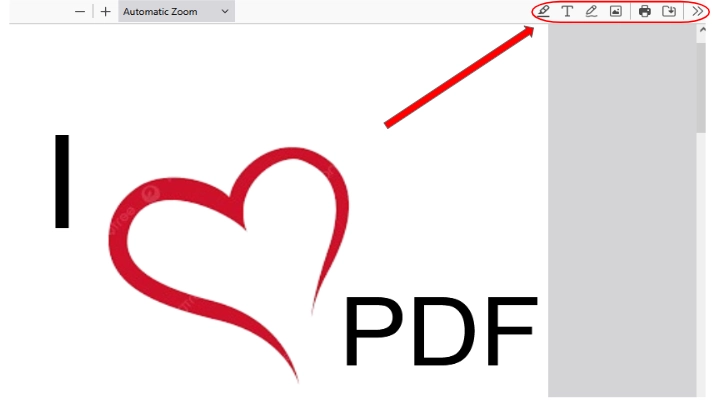
- use the menu circled in the image and make desired changes and redactions.
- After making desired changes, you can save the Redacted PDF file using the down arrow button from the circled menu.
Redact PDF
Redact PDF Tool is a simple way to protect sensitive information in your PDF files. If your document has private details, this tool helps you hide or remove them. It’s easy to use. Just upload your file, and you can black out the text you don’t want to share. You can preview the changes before saving the file, making sure everything is secure. The tool works fast and guarantees privacy, as it deletes all files after use. Whether it’s one document or many, this tool keeps your information safe with no hassle.
Features of the Redact PDF Tool
Easy Redaction
This tool makes it simple to remove sensitive text, images, or data from PDF files. With just a few clicks, you can securely hide or delete information. It’s perfect for keeping your documents private.
Simple to Use
The tool has a clean and easy interface. It’s designed for everyone, even those who aren’t tech-savvy. You won’t face any confusion while using it.
Drag-and-Drop Upload
You can easily upload your PDF by dragging and dropping it into the tool. No need to browse through folders. Just drag, drop, and start redacting.
Supports Multiple PDF Formats
This Redact PDF Free tool works with many types of PDF files. Whether your PDF was created in Adobe Acrobat or another program, it will work smoothly with this tool.
Permanent Redaction
This tool brings permanent changes and redaction to your files making it the perfect way to save sensitive information in your files.
Batch Processing
If you have many PDFs to redact, this tool lets you upload and process them at the same time. It saves you time by allowing you to work on multiple files at once.
Safe File Handling
The tool takes extra care to protect your data. After the redaction is done, your files are deleted from the server to keep them private.
Preview Before Redacting
You can preview your PDF before finalizing the redaction with our Redact PDF Online tool. This feature helps you double-check if you’ve selected the right content to redact, avoiding any mistakes.
Download Redacted PDF
You can easily download the redacted file after making desired changes. Your document will be ready to use with all sensitive information removed.
Common questions and quick fixes
How do I set the redaction rectangle?
Enter X and Y for its position, then width and height. All values use percentages. Keep X plus width and Y plus height within 100.
Can the tool find names or account numbers automatically?
No. You choose the area yourself. The same rectangle applies to your selected pages. Check every sensitive area in the output.
Will the redacted PDF keep searchable text and form fields?
No. This tool rebuilds every page as an image. Original text layers, interactive fields and annotations do not carry over. Digital signing certificates do not survive this process.
Why is my PDF too large to redact?
This browser tool supports up to 30 pages. Split a longer document first. Image-heavy pages can also need more memory, so try a smaller file.
Helpful tip: Inspect the final file before sharing. Check page images, document properties and any other places that may reveal private details.